Markdown images: add one, then check the path
Use  to insert an image. The exclamation mark makes it an image; the square brackets hold alt text; the parentheses hold its location.
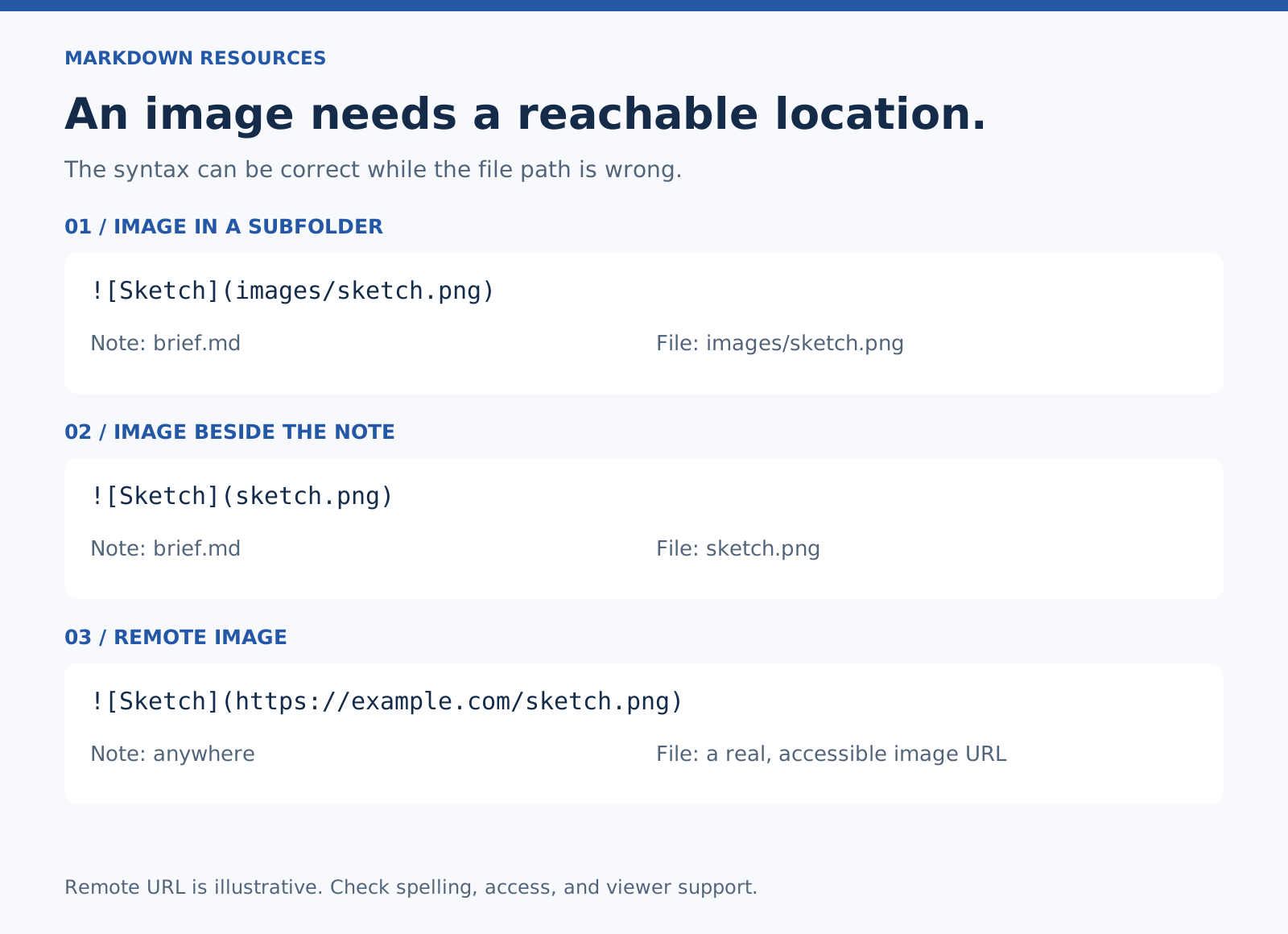
If a Markdown image isn’t showing, check whether the viewer can reach that location. Correct punctuation cannot make a missing or private file available.
Example 1: an image in a local subfolder
This example assumes the Markdown file has an images folder beside it, containing sketch.svg. The review kit includes that sample asset so its preview works locally.
Use a file format supported by your destination. Some viewers restrict SVG; the downloadable examples also include sketch.png.
Example 2: an image beside the Markdown file
Use this shorter path when the image and the note sit in the same folder. If you move the image into a subfolder, update the path.
Example 3: a PNG in the image folder
The extension matters. sketch.png and sketch.svg are two different filenames even when the pictures look the same.
Example 4: a remote image
This is an illustrative URL, not a working image host. Replace it with a direct URL to a real image. Open it in a browser to check that it serves the image, then check access from the destination viewer.
A page that contains an image is not necessarily the image URL. An address that requires your login may also fail for other readers.
Example 5: an image that is also a link
[](https://example.com/project)The outer brackets and parentheses make the image a link. The sample destination is illustrative; replace it before sharing the document.
Example 6: a decorative image
Empty alt text is appropriate only when the image adds no information the reader needs. A teaching graphic usually needs descriptive alt text and an explanation in nearby text.
Write alt text for the information
“A screenshot” tells the reader very little. “A nested list with two tasks beneath the Review step” explains what the screenshot demonstrates. Keep essential syntax in selectable text alongside the picture.
Missing image? Work through these checks
- Look at the syntax. Without
!, you have a link. - Match the filename. Check spelling, capitalization, and the extension. Case sensitivity can differ between local storage and a web host.
- Check the location. A path is resolved against the document or the viewer’s configured base.
- Check access. A website cannot normally read a file that only exists on your laptop. Private or expiring URLs may fail elsewhere.
- Check the format and viewer. The app may restrict a format or block remote content.
- Move the files together. If the note travels, the files it references need a plan too.
Image size is a separate question
Core Markdown image syntax does not define width and height controls. Some tools accept HTML or their own size syntax. Follow the tool’s documentation; don’t assume a size annotation will travel with the file.
Related: Moving notes between apps · Formatting troubleshooting.